
Start Button Pale Green
This guide explains how to resolve issues when the start button appears pale green and won’t allow dispensing to begin. A pale green button indicates that required dispense criteria have not been fulfilled.
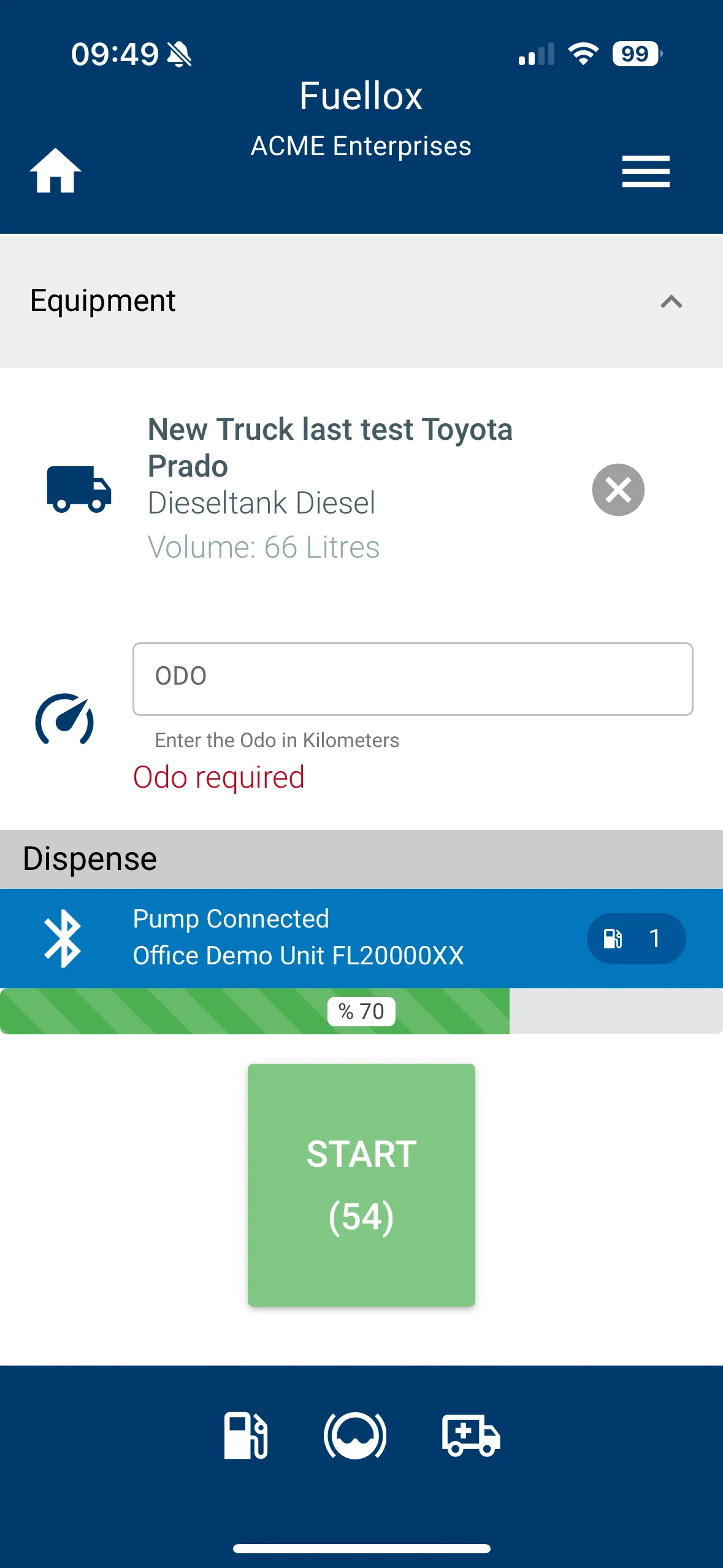
The Issue
The start button on your Fuellox mobile app appears pale green instead of full green, preventing you from starting the pump. This occurs when all mandatory dispense criteria have not been met.
Common symptoms include:
- Mobile app not starting dispensing
- Button pale green or not full green
- Mobile app can select pump but won’t start pumping
- Start button unresponsive or disabled
Why This Happens
The Fuellox mobile app requires all dispense criteria to be completed before allowing fuel dispensing. The pale green button is a safety feature that prevents incomplete transactions.
The start button will remain pale green when:
- Odometer or hours information has not been entered (when required for the selected equipment)
- Compartment has not been selected
- Equipment compartments have not been assigned or created during setup
The Solution
To resolve the pale green start button issue, ensure all required information is provided before attempting to start the dispense.
Check Required Fields
-
Open your Fuellox mobile app and navigate to the dispense screen.
-
Verify that the Equipment has been selected from the equipment list.
-
Check if Odometer or Hours information is required:
- If an odometer or hours field is displayed, enter the current reading
- These fields appear when the equipment has been configured to require this data
-
Ensure a Compartment has been selected:
- Tap the compartment dropdown or selection area
- Choose the appropriate compartment for the fuel type being dispensed
-
Once all required fields are completed, the start button should change to full green.
-
Tap the Start button to begin dispensing.
Verify Equipment Compartment Configuration
If you have entered all information but the button remains pale green, the issue may be with the equipment’s compartment configuration.
-
Navigate to the Equipment section in your Fuellox system (web portal or admin area).
-
Locate the equipment you’re trying to refuel and click EDIT.
-
Check the Compartments section:
- Ensure at least one compartment has been created for this equipment
- Verify that compartments are properly assigned to fuel types
- Confirm that compartment capacities are set correctly
-
If compartments are missing or incomplete, add or update them as needed.
-
Save the equipment settings.
-
Return to the mobile app and perform a Sync to update the equipment data.
-
Try selecting the equipment and compartment again.