
Delete QR Code
Deleting a QR Code in Fuellox ensures your system stays clean and accurate by removing outdated or unused entries, keeping only active and relevant codes associated with assets.
How to Delete QR Code in Fuellox
-
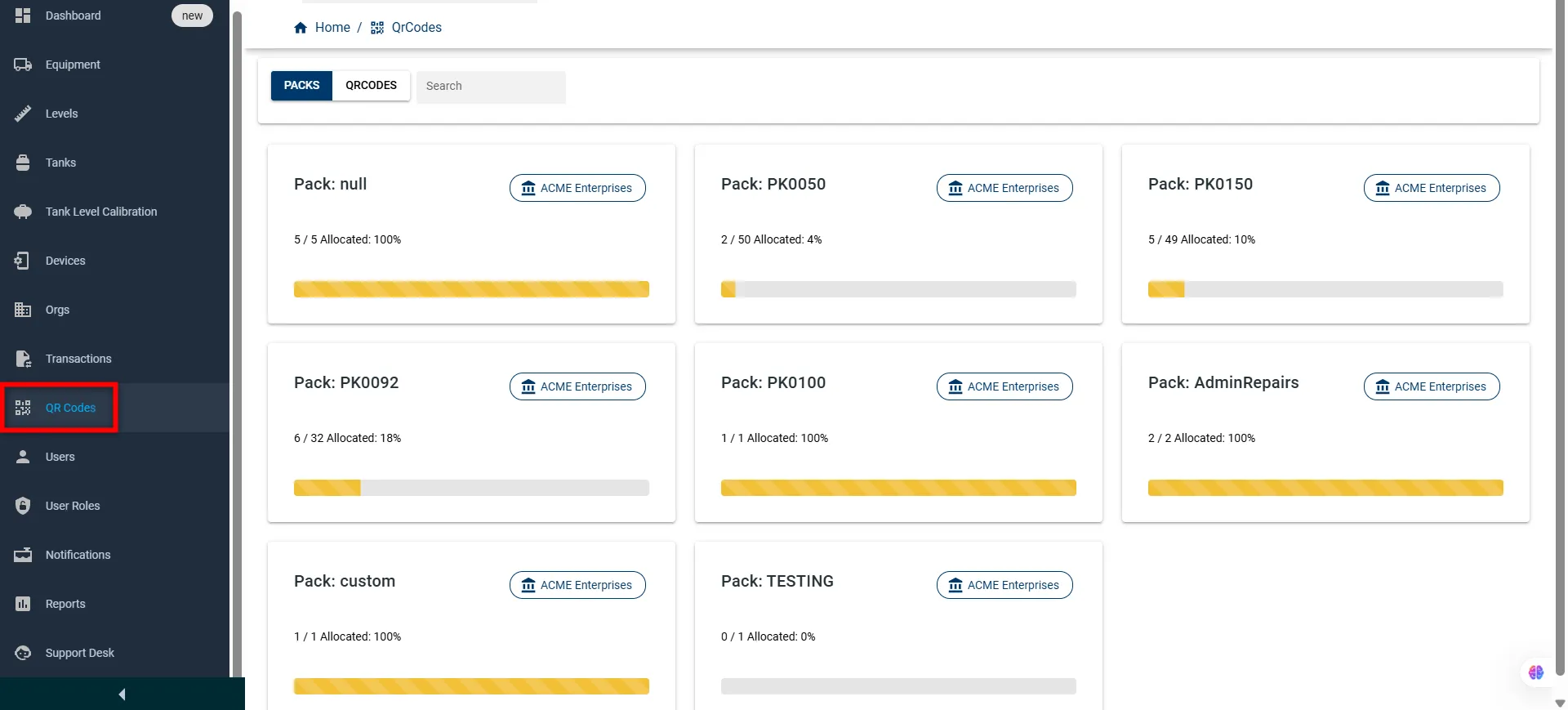
Log in to the Fuellox platform by visiting app.fuellox.io and select QR Codes from the left-side navigation menu.
-
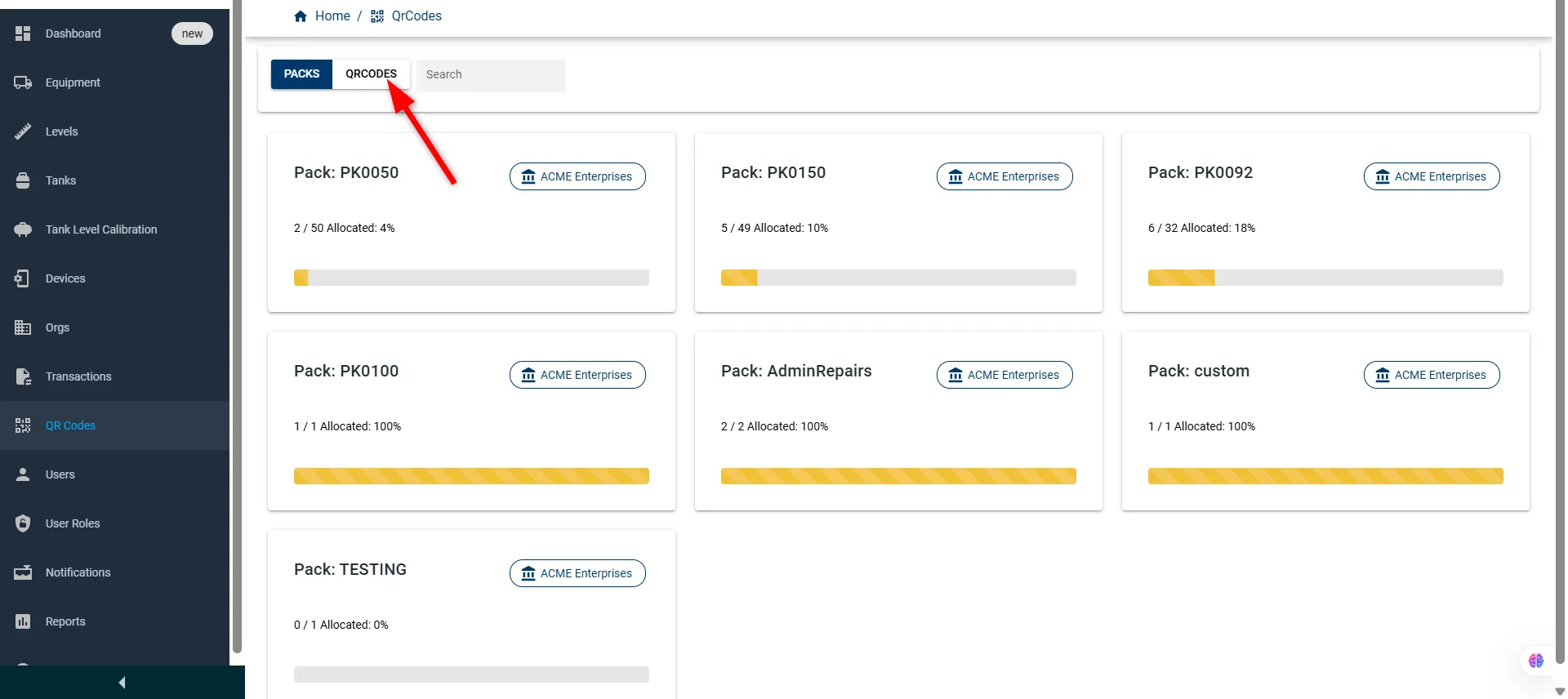
Click on the QR CODES tab at the top of the QR Codes section to switch from Packs to the detailed QR Code list view.
-
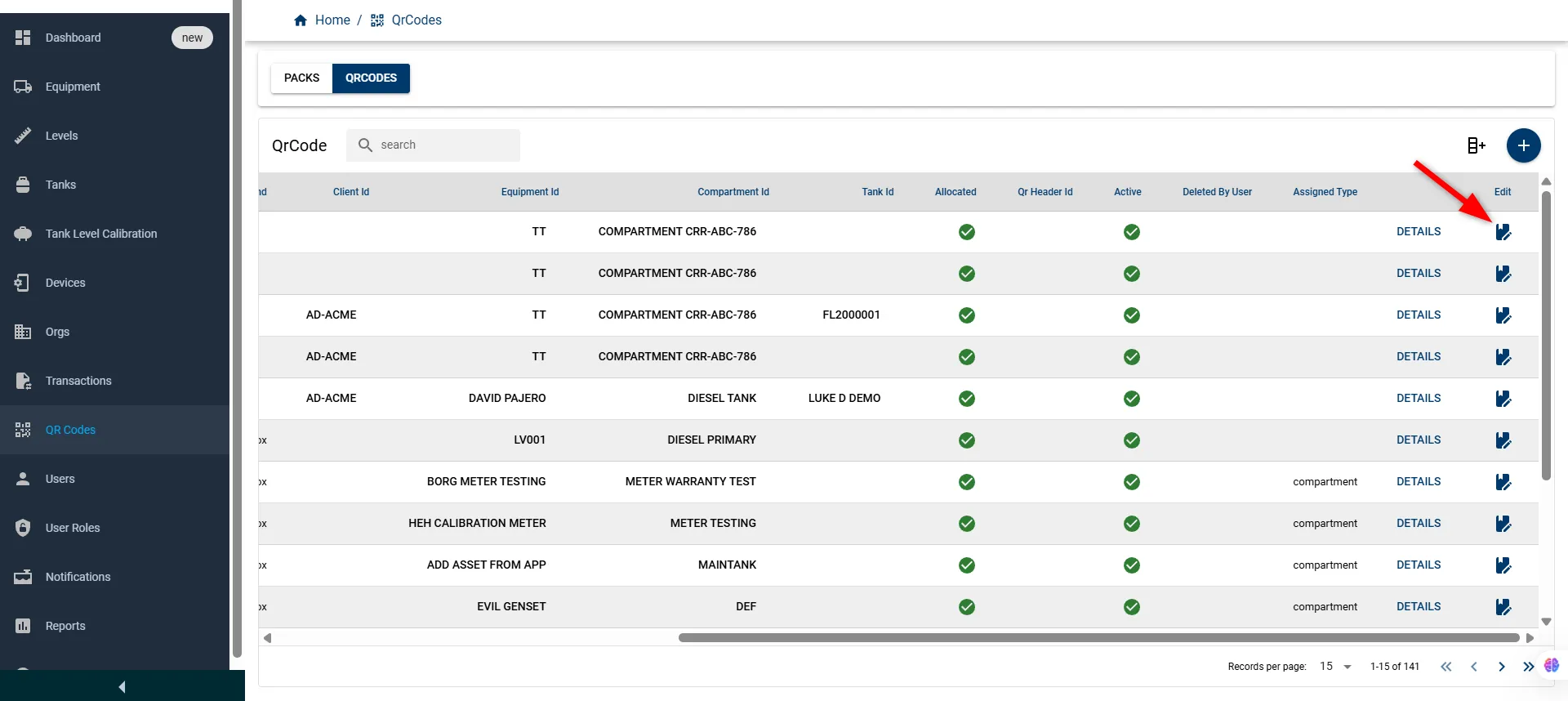
The QR Code page will open, click the Edit icon corresponding to the entry you wish to modify.
-
An Edit QR Code window will appear, pre-filled with the existing data. Update the required fields as needed:
Field Name Description Type Required Label ID Unique identifier for the QR code label Read-only Text No Client Select the client associated with this QR code Dropdown Yes Pack Predefined pack from which the QR code was created Read-only Text No Equipment Equipment associated with the QR code Dropdown Yes Attached DateTime Date and time when the QR code was attached Read-only Text No Compartment Compartment allocated to this QR code Dropdown Yes Added To DateTime Date when this QR code was added to the entity Read-only Text No Tank Tank ID associated with the QR code Dropdown Optional Brand Name of the organization/brand Read-only Text No Custom Code Internal code identifier for QR code customization Text Optional File Any associated file or document Text (optional) No Allocated Indicates if the QR code is currently allocated Checkbox Yes Active Status of the QR code (active/inactive) Checkbox Yes 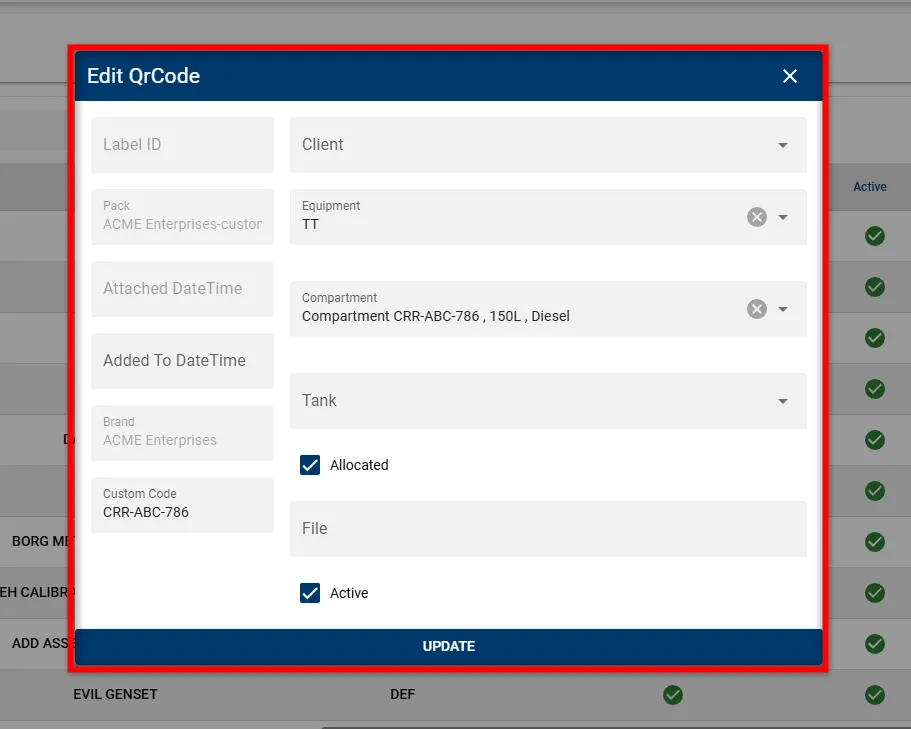
-
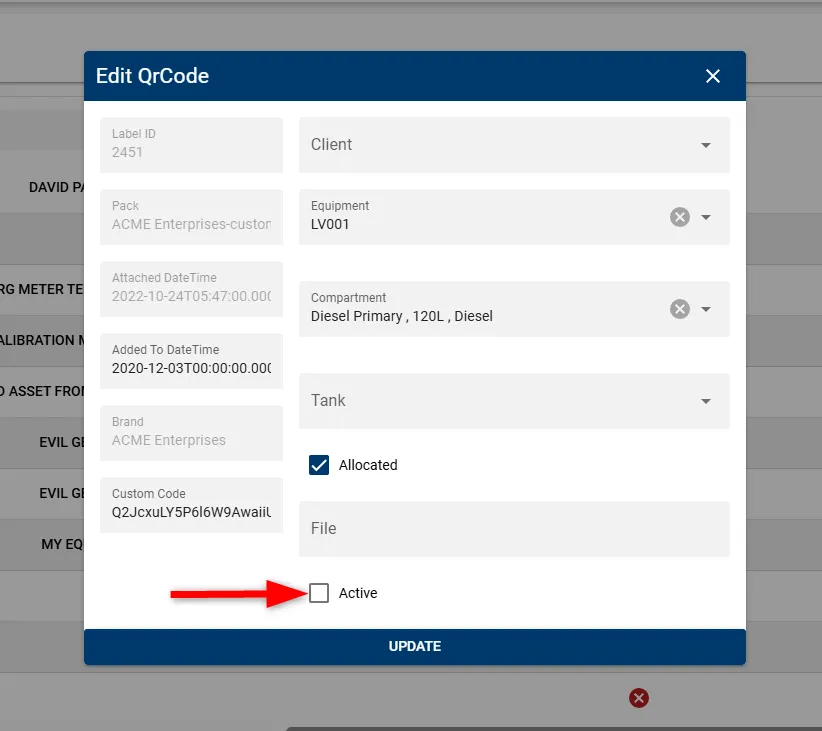
Toggle off the Active checkbox to deactivate the QR Code.
-
After making the necessary changes, click the UPDATE button to save.
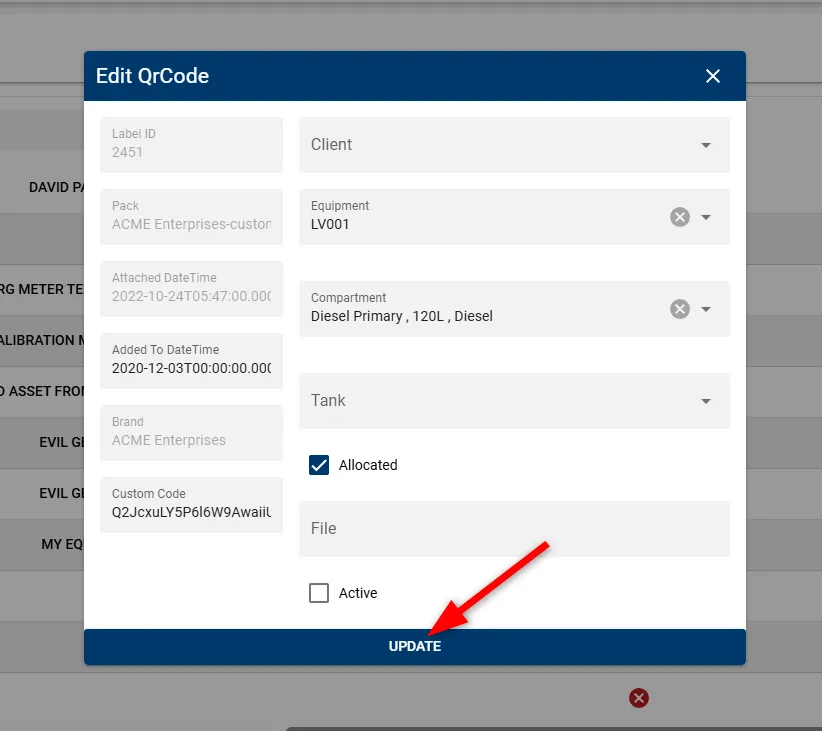
Now you have successfully deactivated the QR Code, ensuring it is no longer available for active use while retaining its data for reference.